top of page

|
|

PACKAGE & QR A KIT
CONDUCTOR HELP/WAREHOUSE/
The purpose of this guide is to help you with kitting a package, creating, and printing a QR code for labeling.
1. In Conductor, mouse over WAREHOUSE in the main navigation (top right) and select Kit from the drop-down menu . (See image below.)

2. On the Kit Page, click the '+' button in the upper right corner for a single package - OR - click on the 3 vertical dots (to the right of the '+') to select 'Add Ad Hoc' if you are kitting multiple packages. (See image below.)

3. Click the '+' button to launch the Add Equipment window. Use the dropdown to select the proper package (e.g. EV Speaker Package) and then click on the green SAVE button. (See image below.)

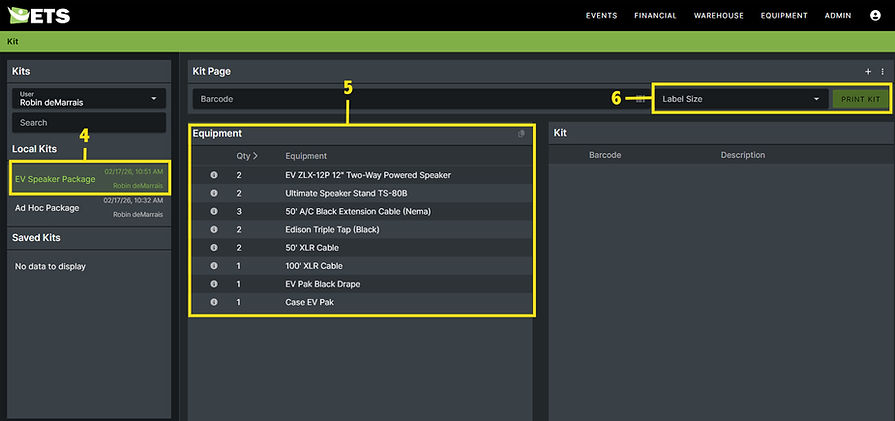
4. Once equipment is added, it will appear under Local Kits on the left side of the screen. It should display the Kit Name, Date, Time, and User who created it.
5. Confirm everything in the Equipment List is accurate before printing.
6. Locate the Label Size dropdown at the right of the Kit Page panel and select the correct label size for your printer. Once selected, click on the green PRINT KIT button. (See image below.)
7. Conductor will generate the QR label for the kit in a pdf.
8. Attach the printed label to the kit.
WAREHOUSE
Package & QR a Kit
bottom of page